
To use SSO, at least SAP JCO 3.1.3 is required. A bug in earlier versions prevents SSO from working.
The following steps have to be executed:
-
Open the SAP software center:: https://launchpad.support.sap.com/#/softwarecenter
A login as an S-User with sufficient access rights is required.
-
Search for SAPSSOEXT and download the current version for the appropriate architecture.
-
If IFConneX is used, the version for the operating system on which Windchill is running must be downloaded.
-
For the ReleaseEngine, the version for the operating system on which the ReleaseEngine is running must be downloaded.
-
-
Extract the content of the .SAR file into a separate folder using the SAPCAR tool.
Download the SAPCAR utility if you have not already done so:
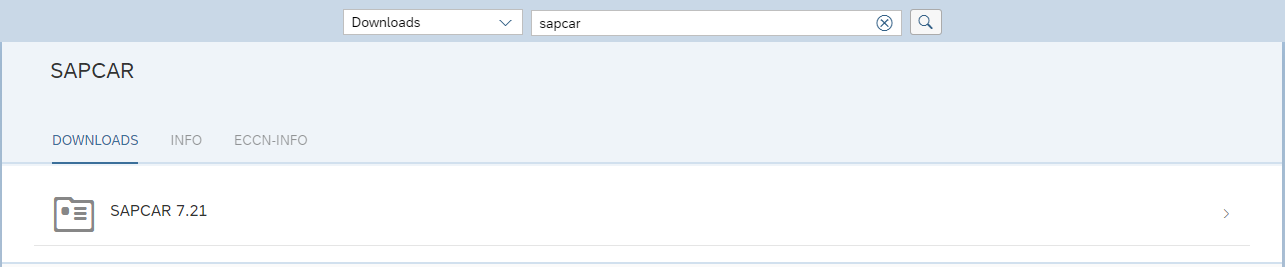
Run the following command with the customized file and directory names:
SAPCAR.EXE -xvf SAPSSOEXT.SAR -R C:\Temp\sapssoext
-
Once the required folders/files are available, the directory containing the following files must be copied to the target system.
For Windows systems, these are:-
sapssoext.dll -
sapcrypto.dll -
sapgenpse.exe
For Linux systems, these are:
-
libsapssoext.so -
libsapcrypto.so -
sapgenpse
-
The libraries that are necessary for use must be available and installed, for example, Microsoft C++ Redistributable 2010.
Info
-
The path on the target system can be chosen freely. It should not contain any spaces or special characters.
-
Windchill or the ReleaseEngine need read access to the files.
-
The path must be communicated to Innoface, as the path must be specified in the configuration of the interface or rather the ReleaseEngine.