
Output
The "Back to previous page" and "Refresh overview" icons are at the top of the screen.
The columns are divided into
-
ID: Email ID
-
Subject: Individually defined subject title
-
Addressee: Email address(es)
-
Sent: Date and time of the mailing
-
Send status: "Failed to send Mail 'ID' without content.", "Test mail delivery for 'PART."
If there are multiple email recipients, the email addresses are separated by commas.
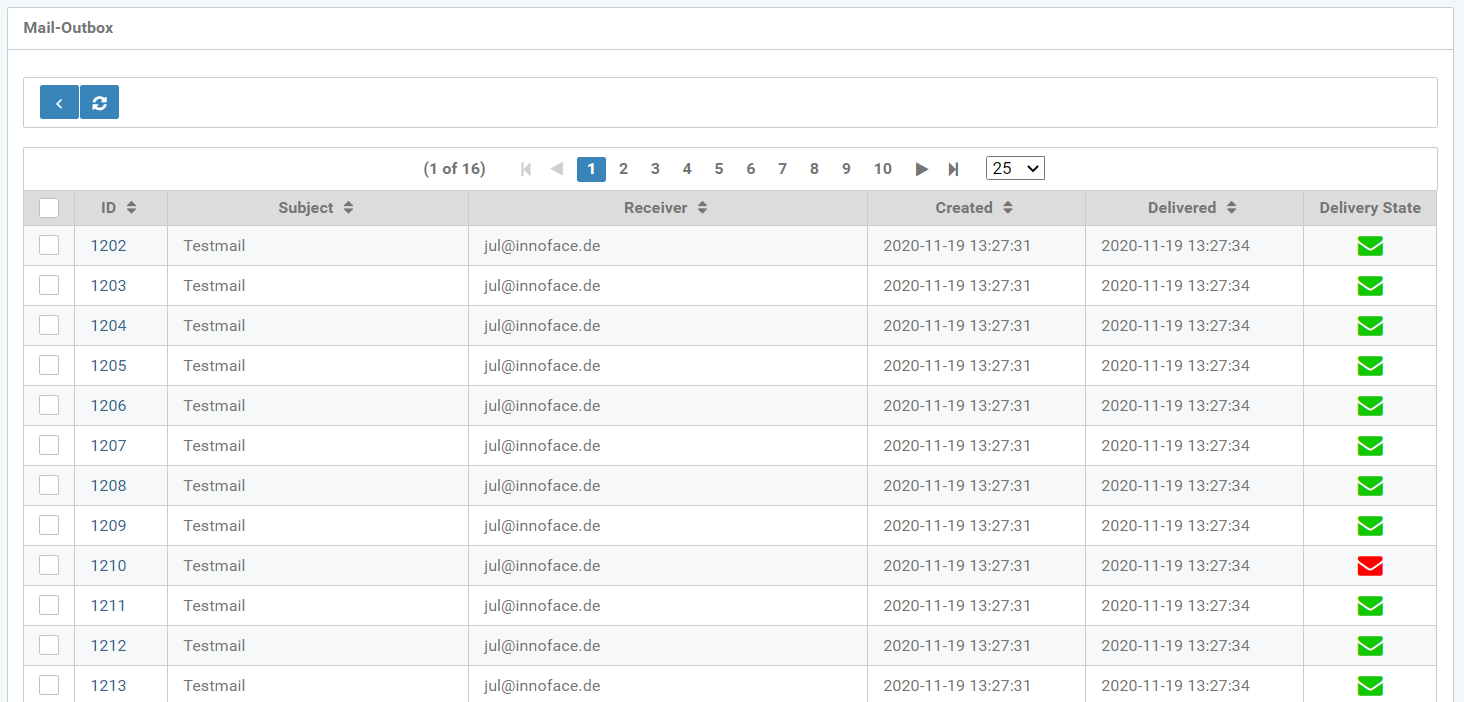
Figure: Outbox, top navigation
Mail details
Clicking on the "ID" in the outbox list; opens the Mail Details page.
-
Sender: Sender of the emails
-
Addressee: All email recipients are listed with a comma separated value.
-
CC (optional): as recipient
-
BCC (optional): as recipient
-
Subject: Subject of the mailing
Message(s)
Shows the messages of the mailing.
-
Type: text/html
-
Name (optional)
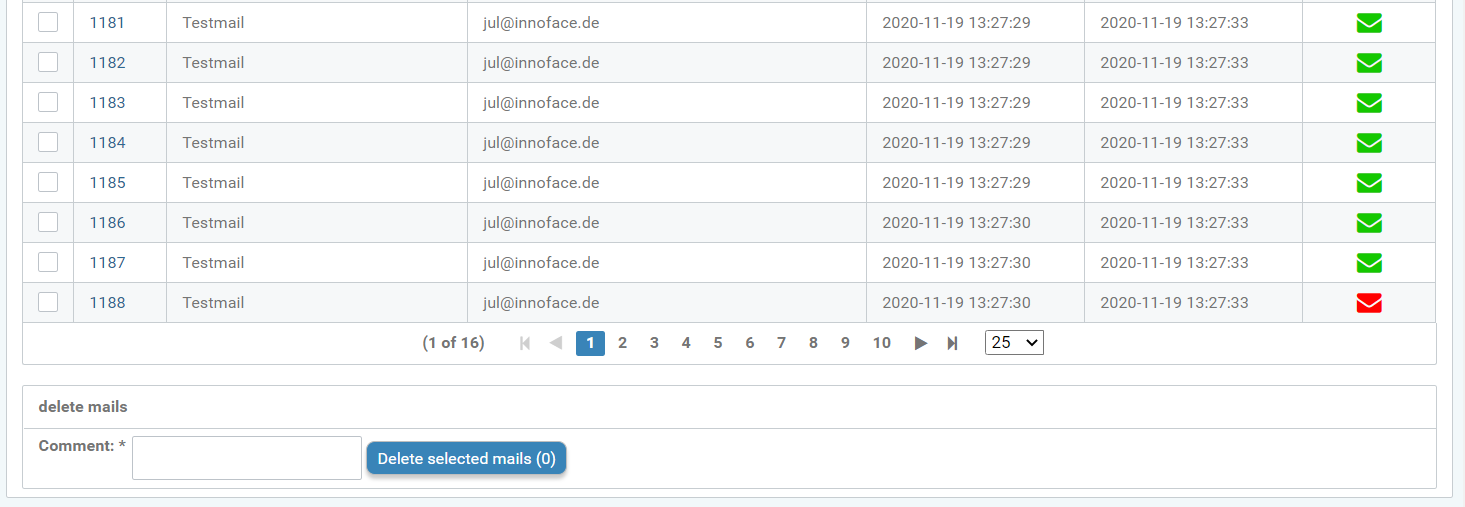
Figure: Outbox, delete mails with a comment
Delete Mails
Procedure
-
Select the emails to delete (tick and blue background.)
-
Add a comment for delete mails, here e.g. "delete test mail".
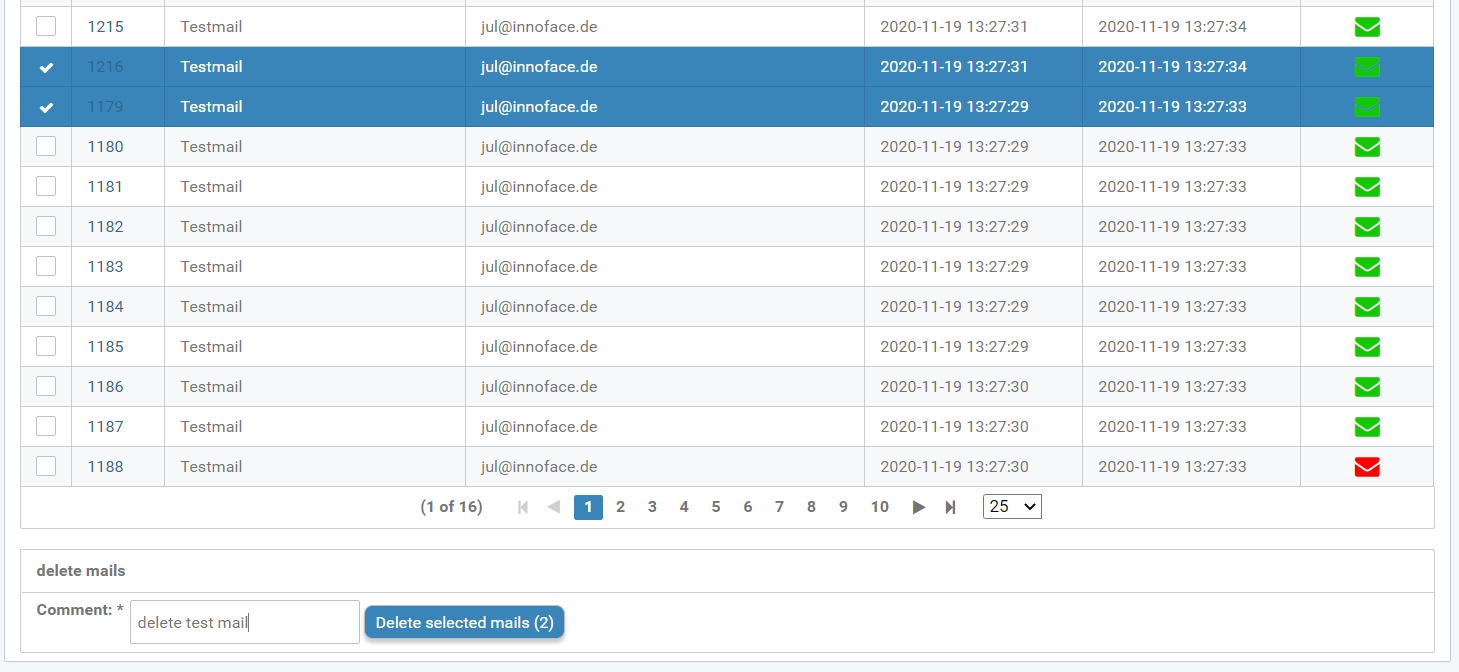
Figure: Outbox, selection of the mails to be deleted
3. Before the mail is finally deleted, the pop-up window Delete selected mails? opens.
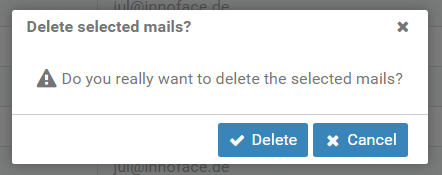
Figure: Pop-up window "Delete selected mails?"
If the mails are successfully deleted, a message for the user appears above the outgoing mail list.
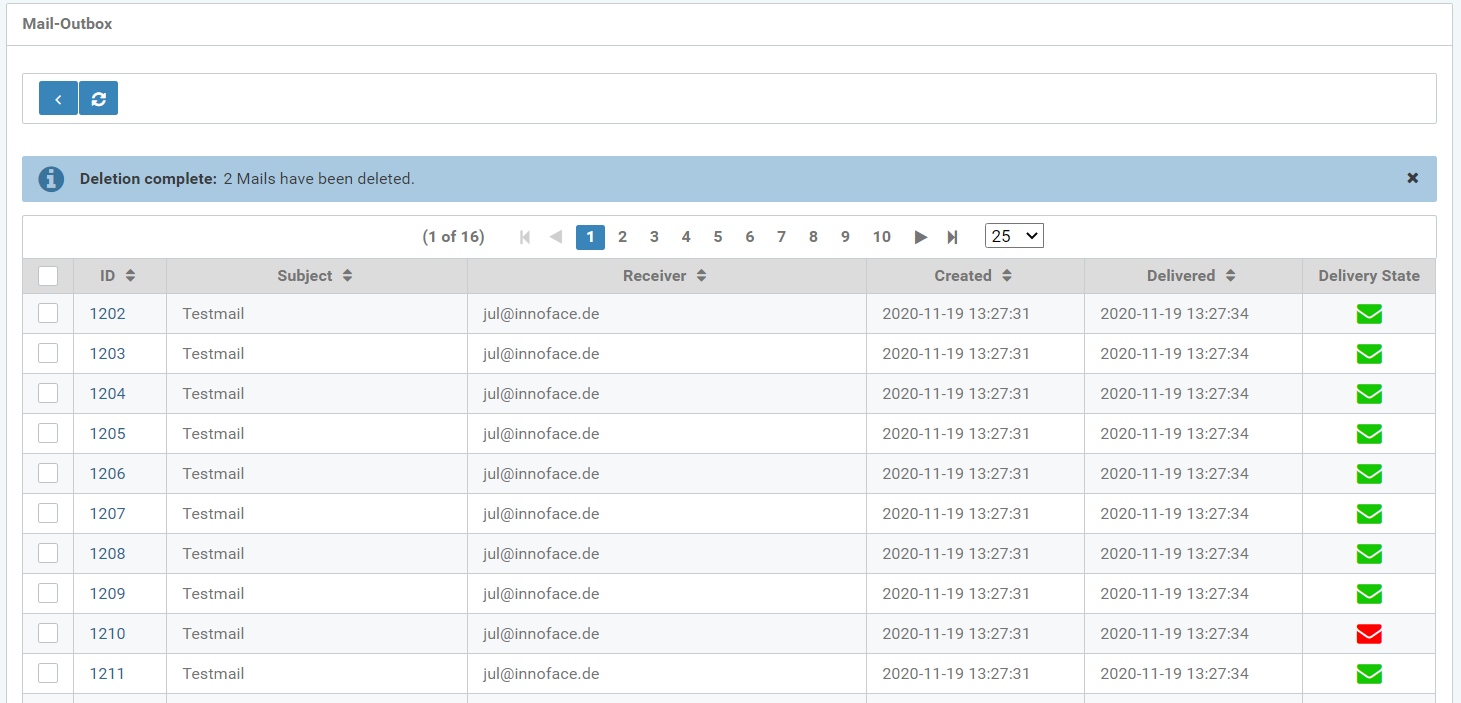
Figure: Outbox with the message, that 2 mails are successfully deleted.