
RPE and RE clusters
RPE and RE clusters configuration range.
The icons "Back to previous page", "Update overview" and a dropdown menu “New” are at the top of the screen for selecting the various types of clusters.
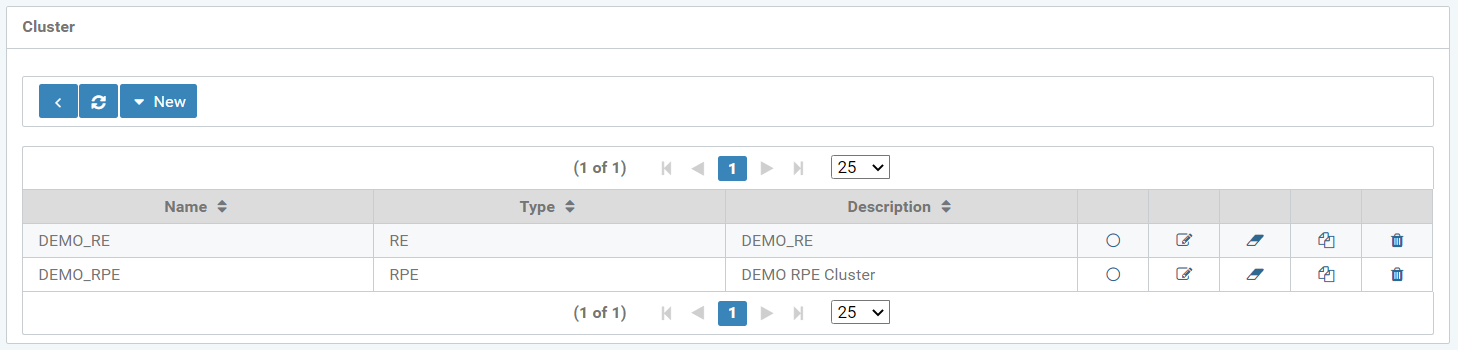
Figure: Cluster overview
Existing clusters show in a table.
The columns are divided into:
-
Daemon name (Name),
-
Type (RPE, RE)
-
Description of the cluster
-
Display the cluster configuration (Circle icon)
-
(Copy and) edit current cluster configuration (Edit icon)
-
Rename cluster (Eraser icon)
-
Create a new cluster based on this cluster (Duplicate icon)
-
Delete this cluster (Recycle bin)
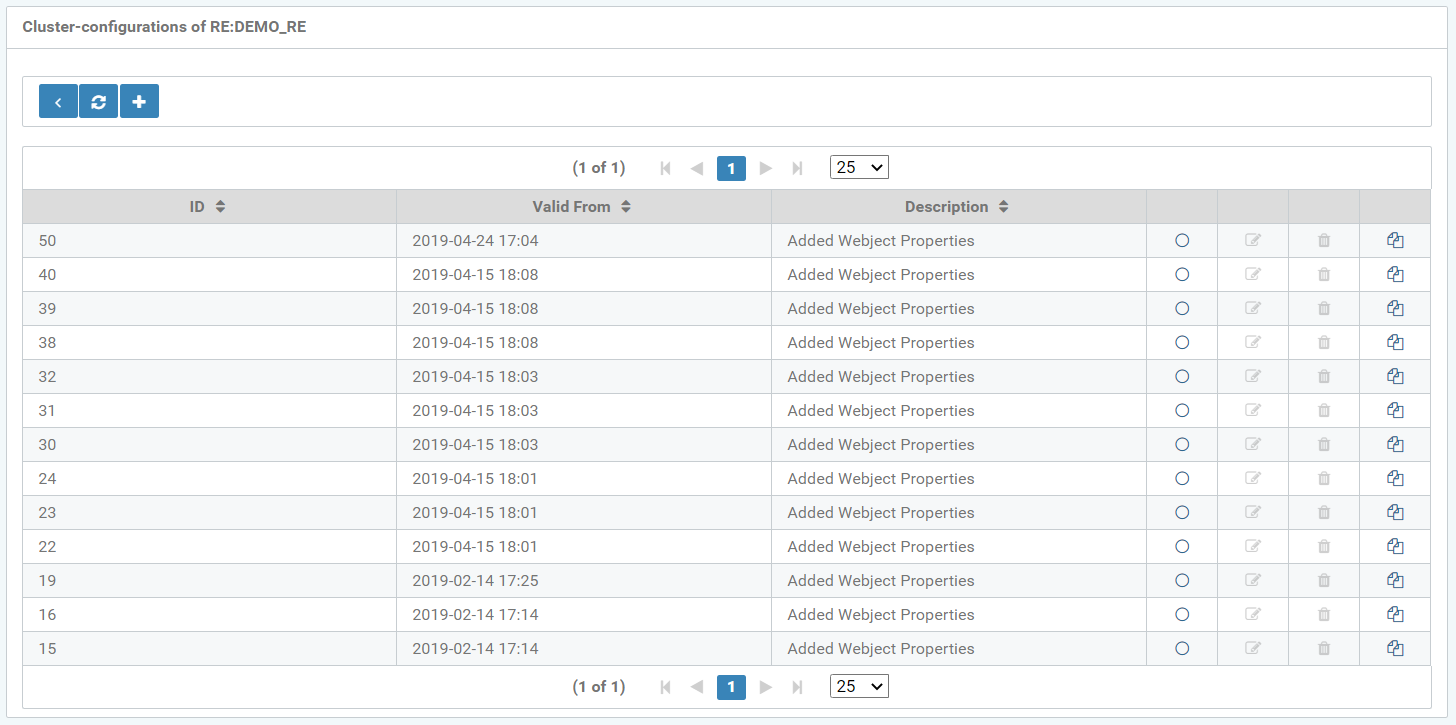
Figure: Display the cluster configurations (Circle icon)
When clicking the Circle icon"Display cluster configurations”, the following tabs open:
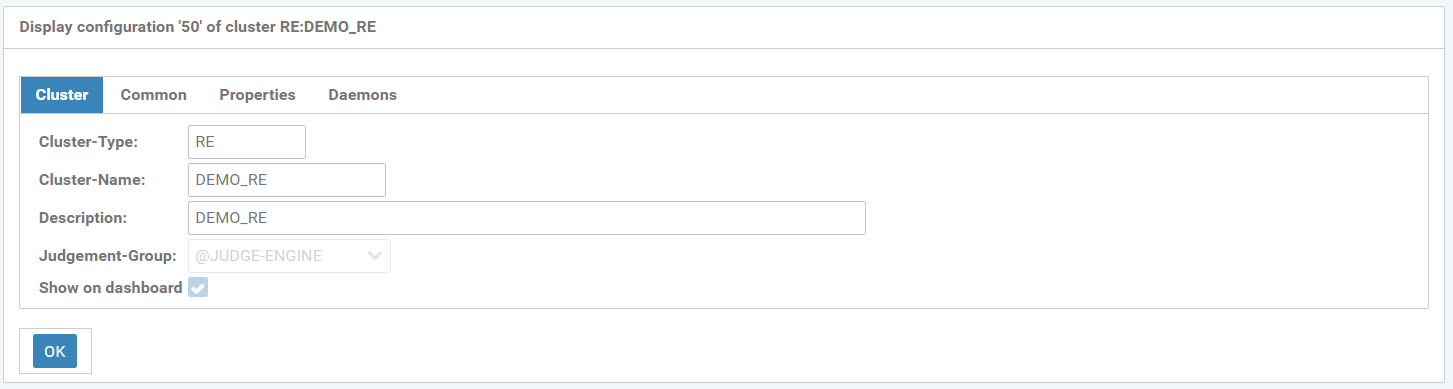
Figure: Cluster configuration display, type RE, “Cluster” tab
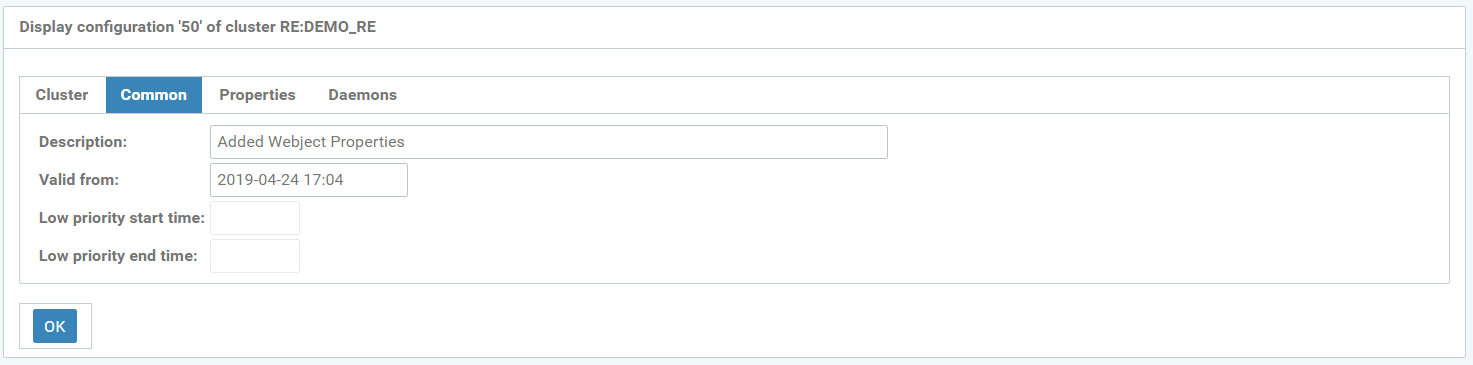
Figure: Cluster configuration display, type RE, "General” tab
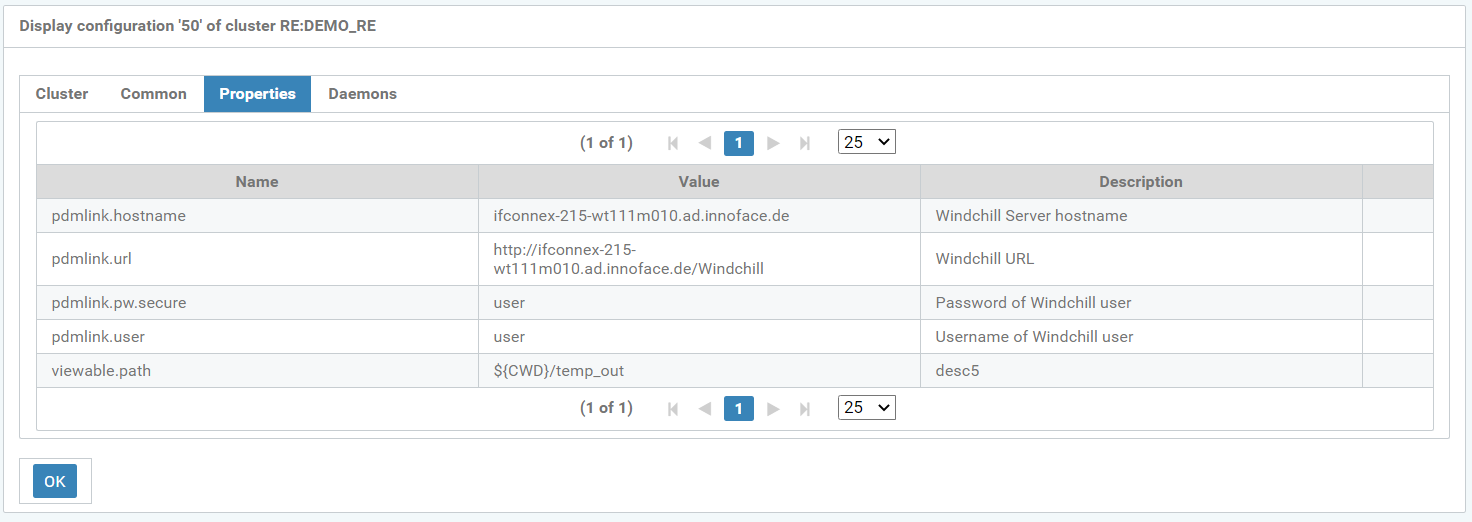
Figure: Cluster configuration display, type RE, "Properties” tab
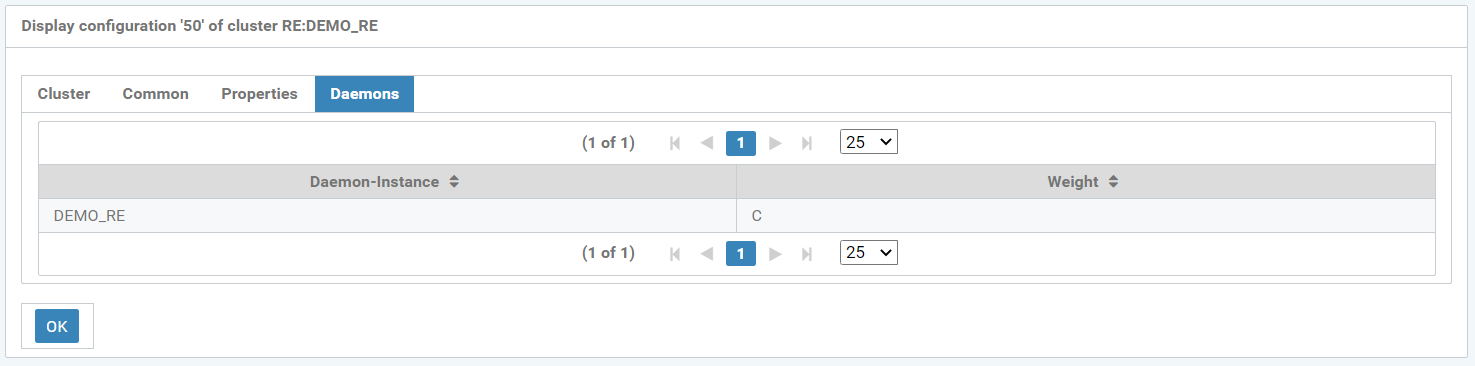
Figure: Cluster configuration display, Type RE, “Daemon” tab
When clicking the Edit icon "(Copy and) edit current cluster configurations", these tabs open in the following Figure:
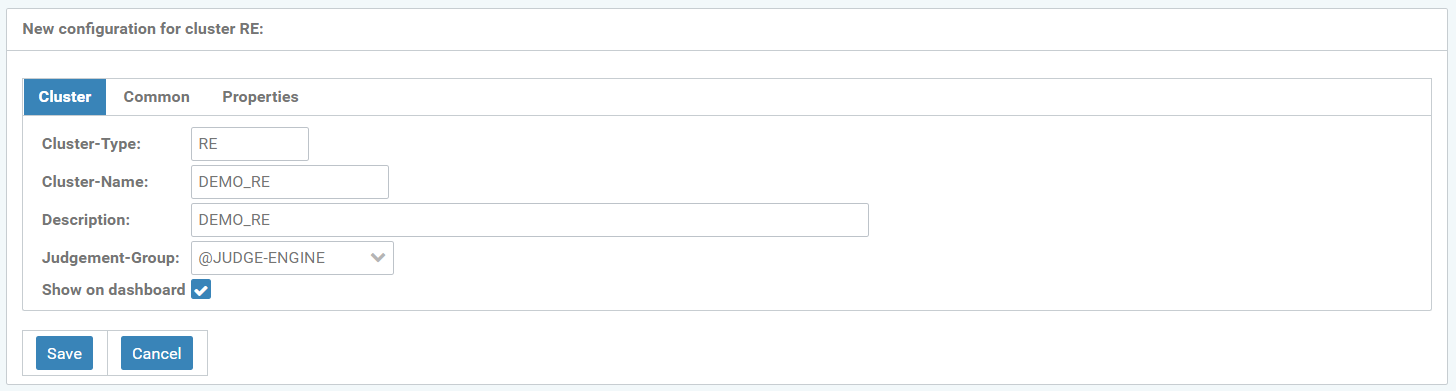
Figure: (Copy and) edit current cluster configuration (Edit icon)
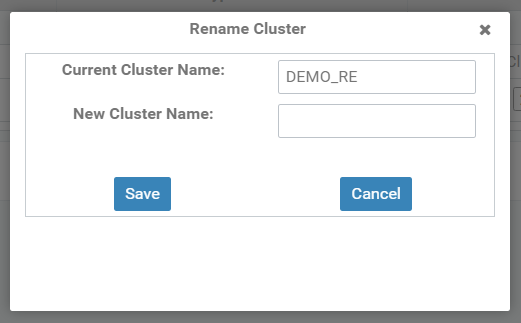
Figure: Rename the cluster
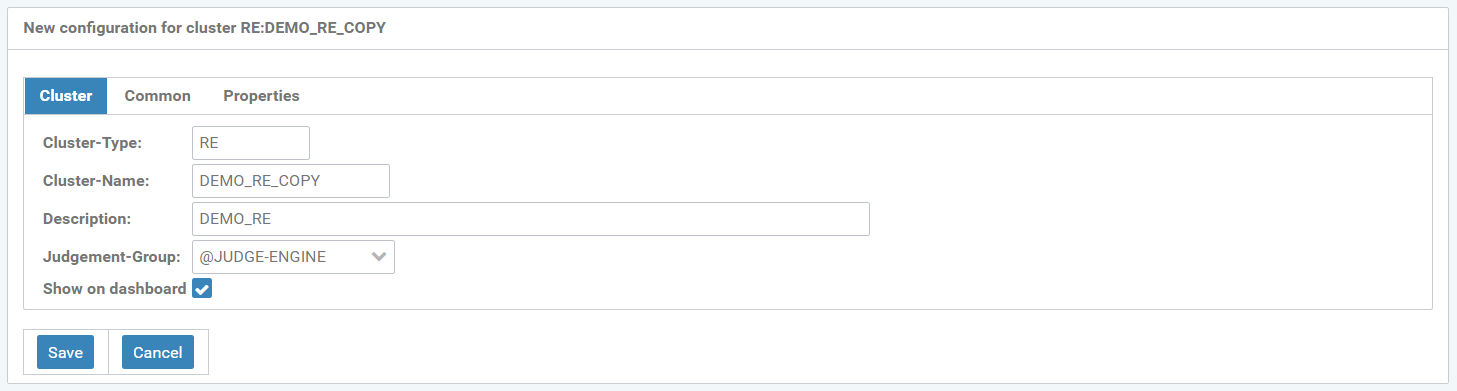
Figure: New configuration for cluster RE:DEMO_RE_COPY, “Cluster” tab
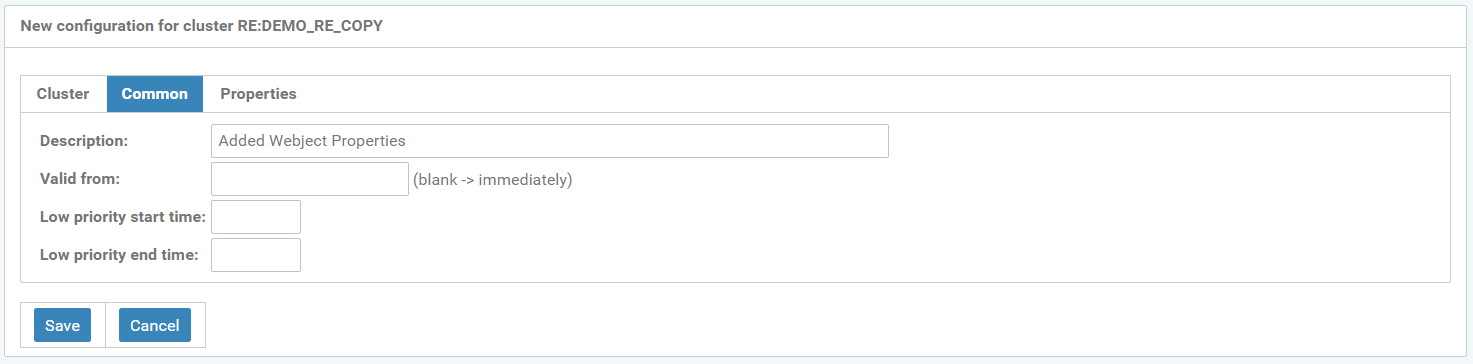
Figure: New configuration for cluster RE:DEMO_RE_COPY, “General” tab
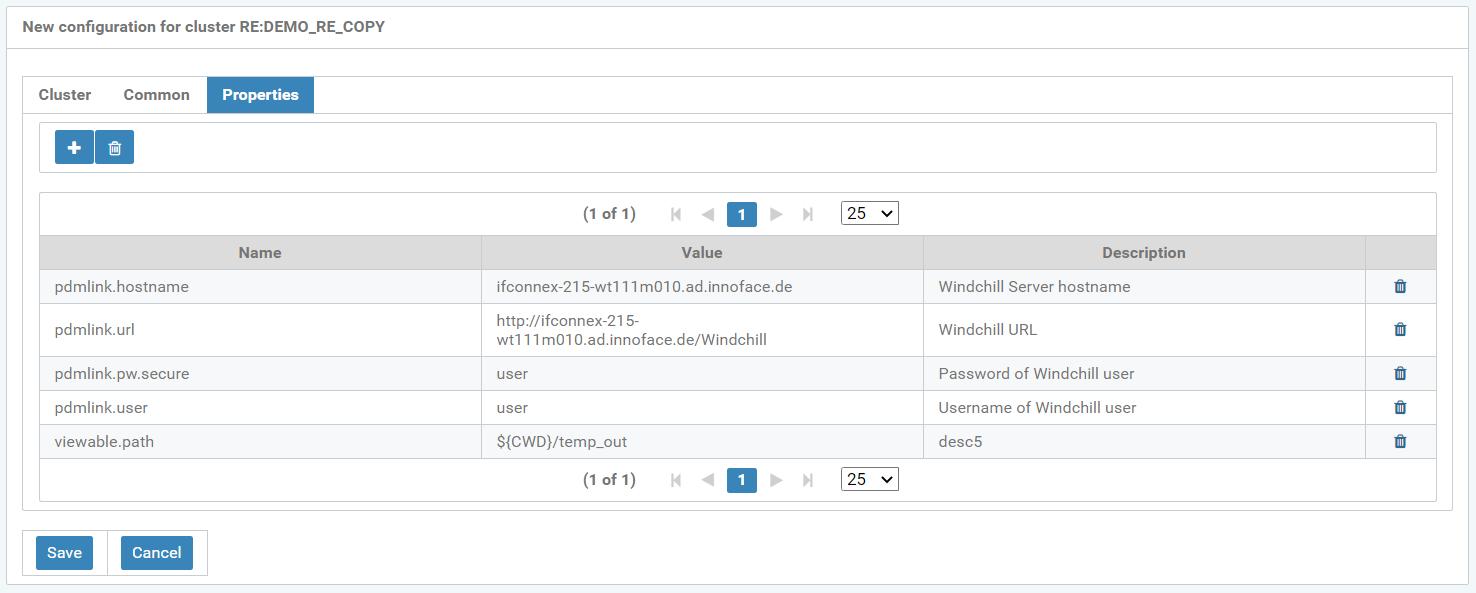
Figure: New configuration for cluster RE:DEMO_RE_COPY, “Properties” tab
Create new cluster
The cluster type (RE or RPE) is pre-selected, when creating a new cluster.
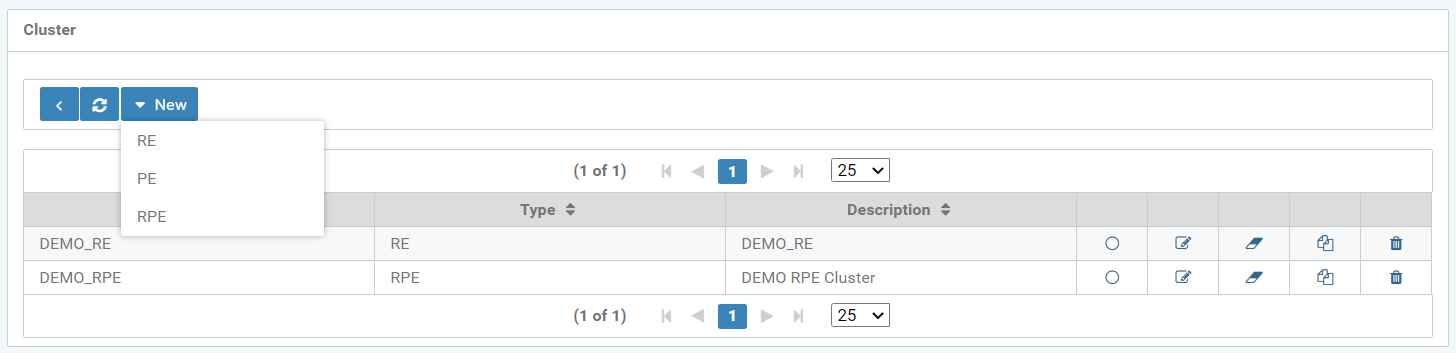
Figure: Create a new cluster - select Type
For example, cluster type RE was selected here. Further configurations are possible in the "Cluster" tab, regarding:
-
Cluster name
-
Description
-
Assessment group
-
Show on Home/landing page
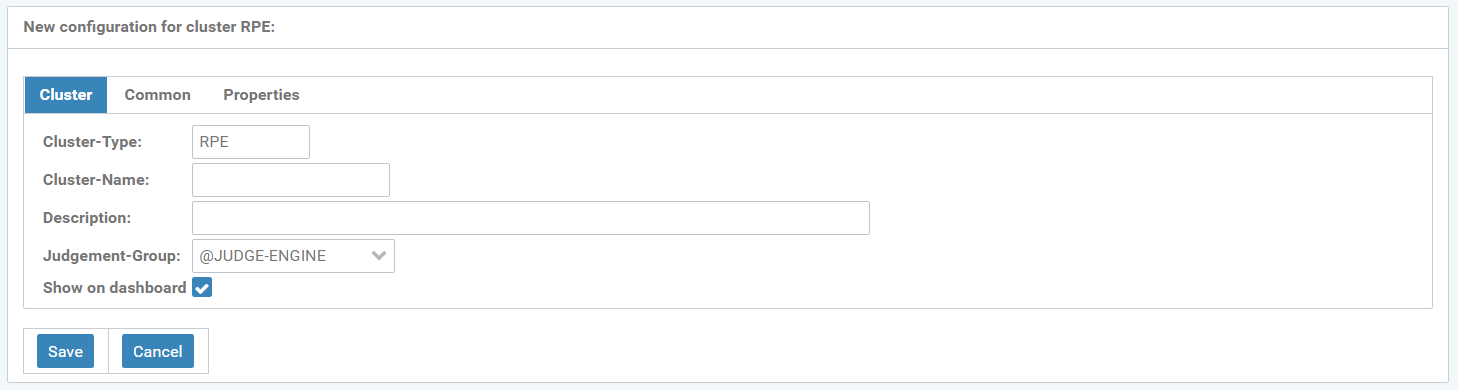
Figure: Edit new RPE cluster
The "General" tab facilitates the following settings:
-
Description
-
Valid from
-
Start time low priority
-
End time low priority
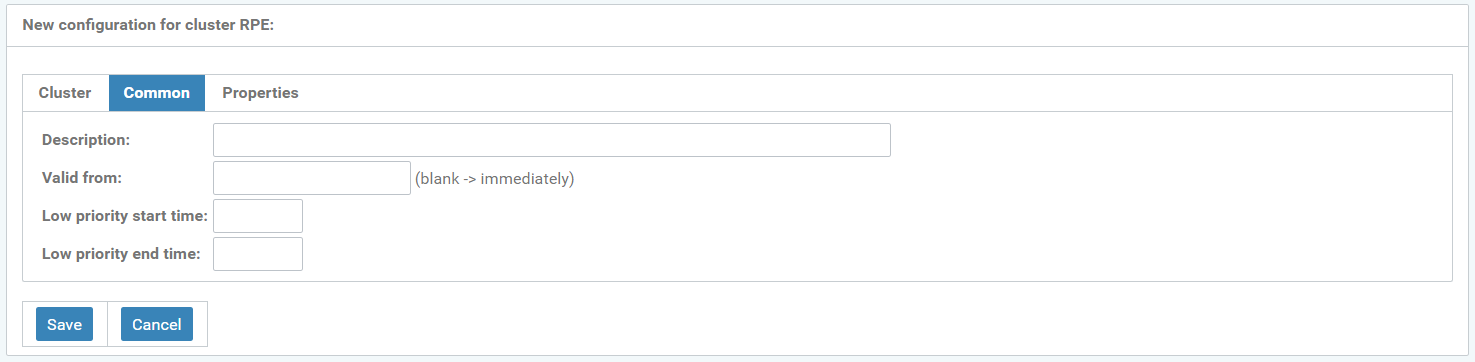
Figure: Edit general cluster settings
The "Properties" tab lets you edit:
-
Name
-
Value
-
Description
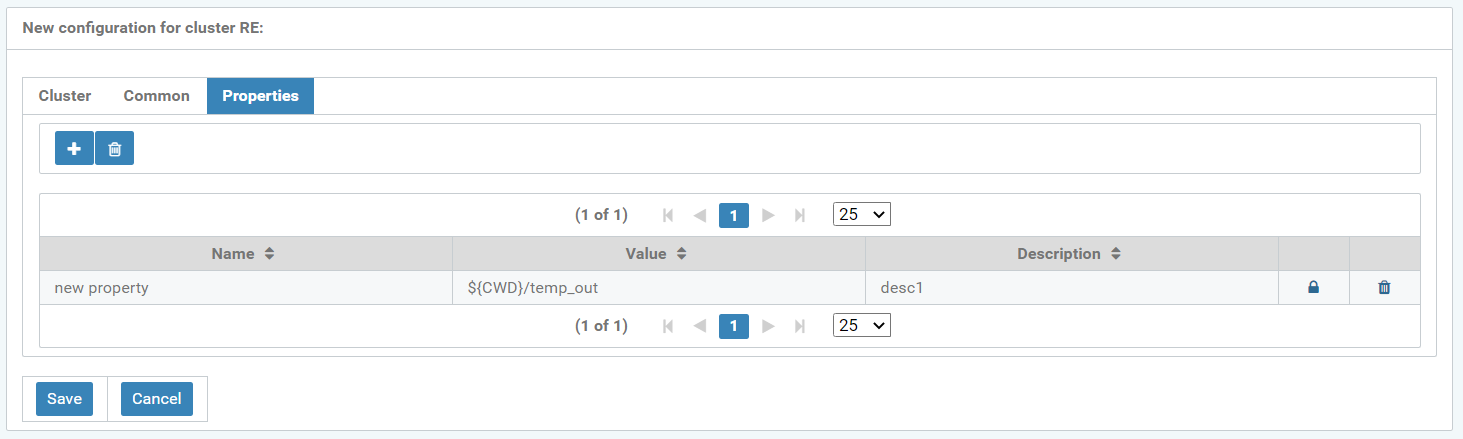
Figure: Create new cluster property
A cluster property can be encrypted by clicking on the encrypt icon (lock icon), which opens the window, see figure below. It can be activated by checking the "encrypt" box. The property can also be viewed and modified in plain text and decrypted again if required. With "Confirm" this input is confirmed.
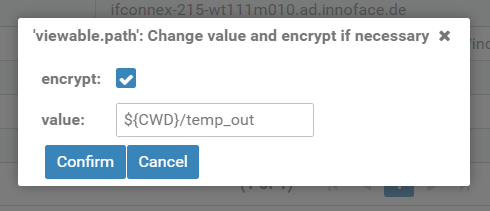
Figure: Pop-up window "Change value and encrypt if necessary"
If a cluster property is encrypted, the encrypt icon is displayed as an open lock icon, see the following figure, last table row, 4th column.
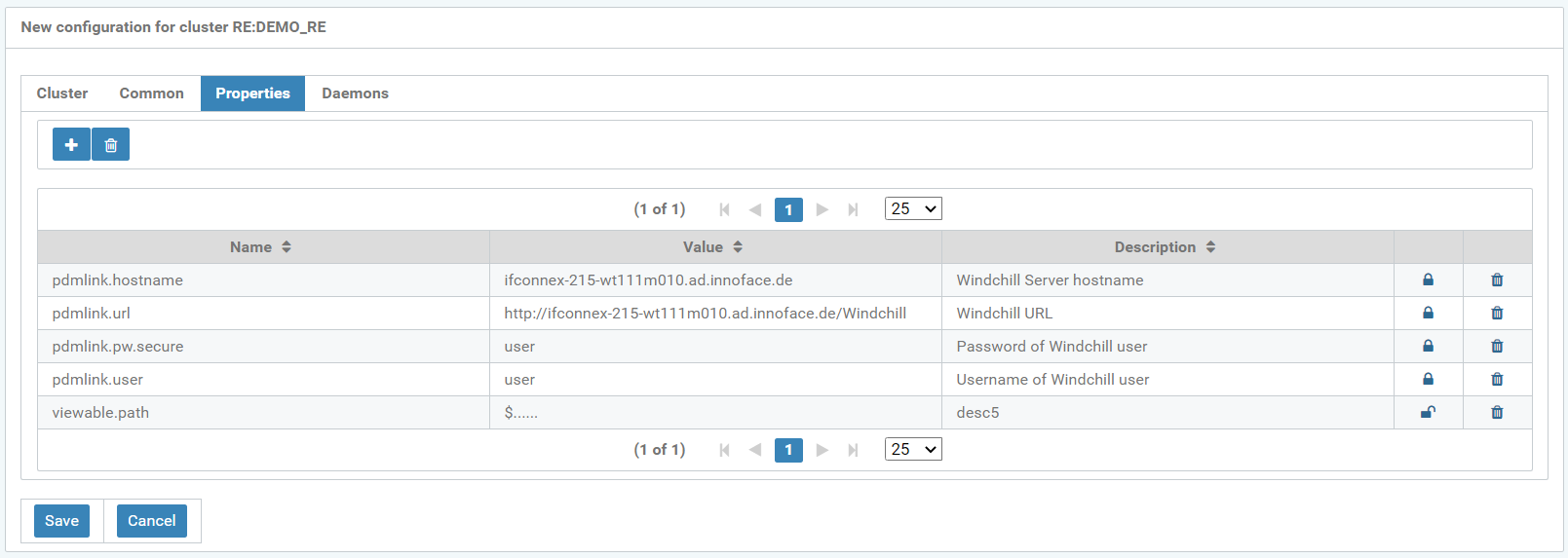
Figure: New configuration for cluster