
Data extension repositories
Data extension repository configuration.

Figure: Entry level for data extension
The icons "Back to previous page", "Update overview" and "Create new repository” are at the top of the screen.
Existing repositories are shown in a table.
The columns are divided into
-
Name
-
Description (optional)
-
Display repository configuration (Circle icon)
-
Edit Repository (Edit icon)
-
Delete Repository (Recycle bin)
-
Inspect repository objects (Stethoscope icon)
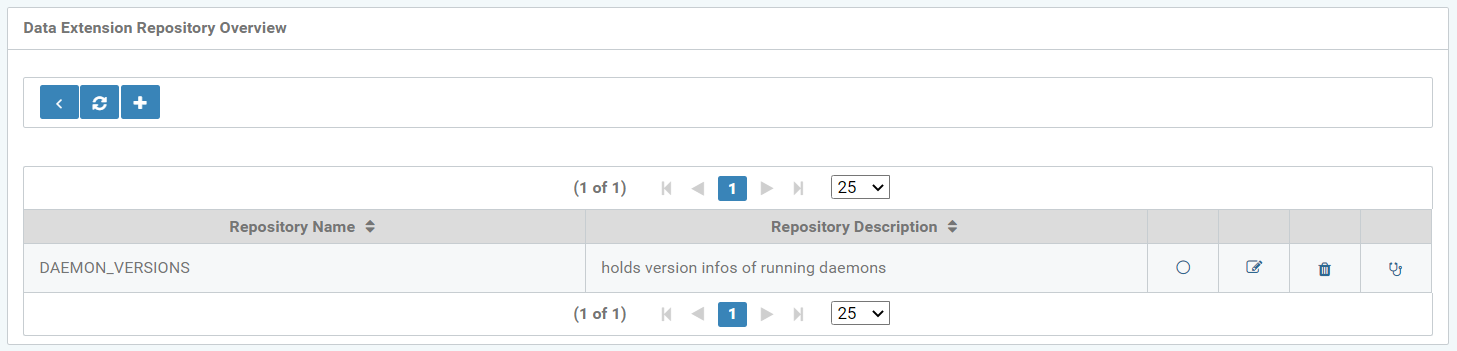
Figure: Data extension repositories overview
Use the “+” icon to create a new repository. It opens a window, where the name and description of the repository can be specified.

Figure: Create a new Repository
Clicking the "Inspect repository objects" icon (stethoscope icon) opens the table below. It contains information on:
-
Name
-
ID
-
Attributes
-
Creation date
-
Revision date
of the selected repository. For example, the repository DAEMON_VERSIONS.
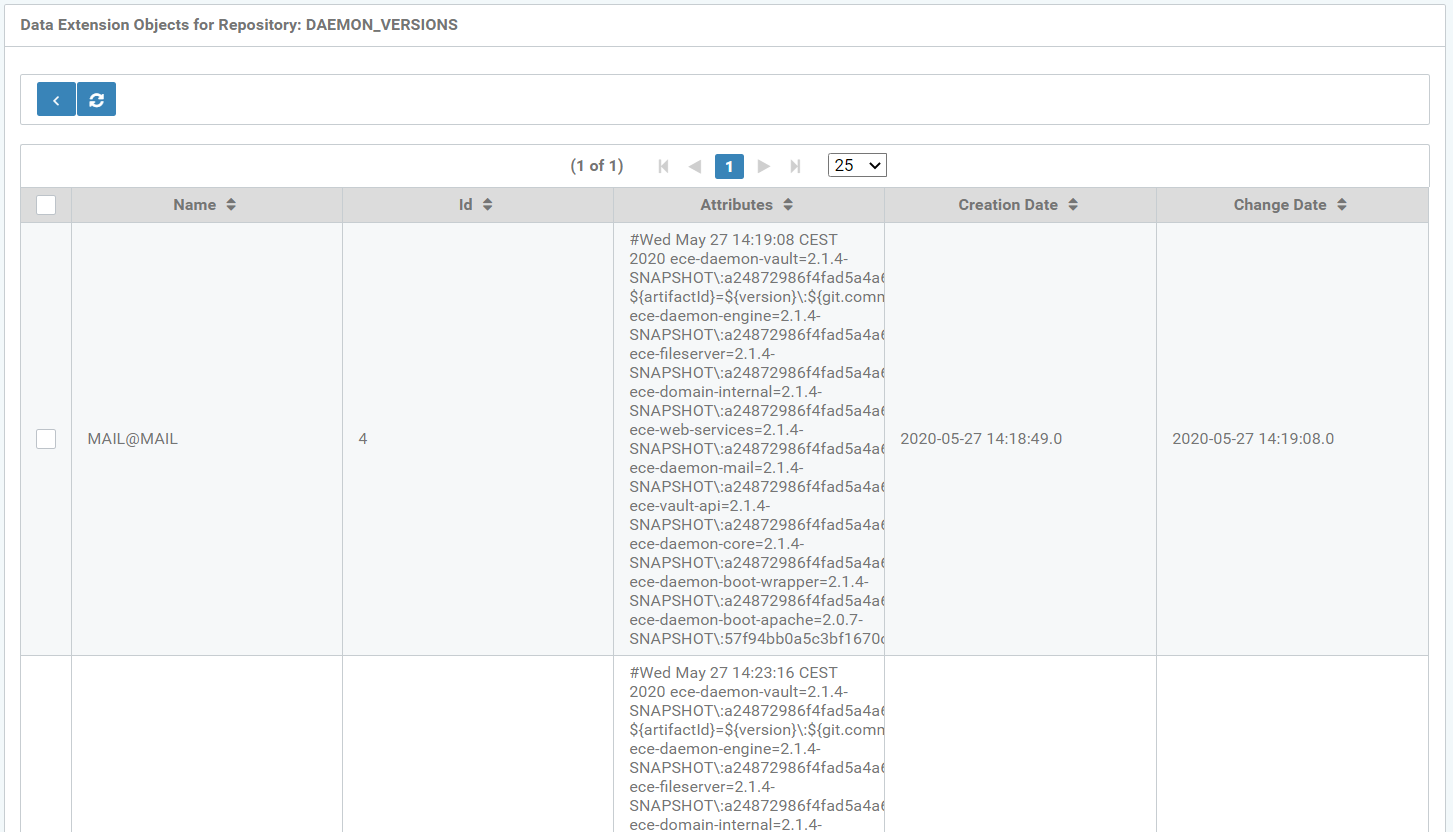
Figure: File extension objects for repository
Use the Edit icon to access and modify an existing repository, see the following figure.

Figure: Show repository
The Circle icon allows the user to display the name and description of the repository, see the following figure.

Figure: Modify repository