
Distribution lists
Configuration of email distribution lists.

Figure: Entry level of the email distribution lists
The icons "Back to previous page", "Update overview" and "Create new distribution list” are at the top of the screen.
Existing distribution lists display in a table.
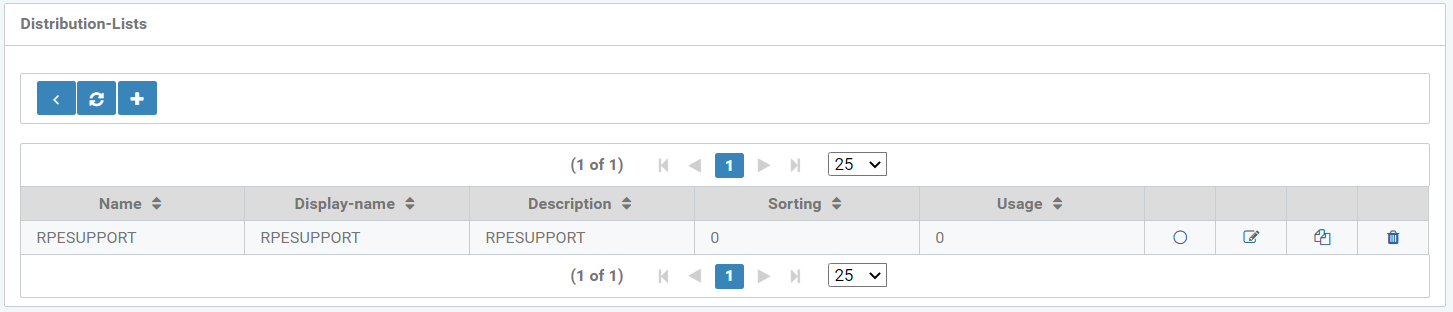
Figure: Email distribution lists overview
The columns are divided into:
-
Name
-
Display name
-
Description of distribution list (optional)
-
Sorting
-
Use
-
Display of the distribution list (Circle icon)
-
Changes to the distribution list (Edit icon)
-
Create new distribution list based on this distribution list (Duplicate icon)
-
Delete this distribution list (Recycle bin)
Create new distribution lists with the "+" icon. When selecting this, a new "Create distribution list" window opens.
General information, such as: Name, Display name, Description, Sorting, and Use, is available here.
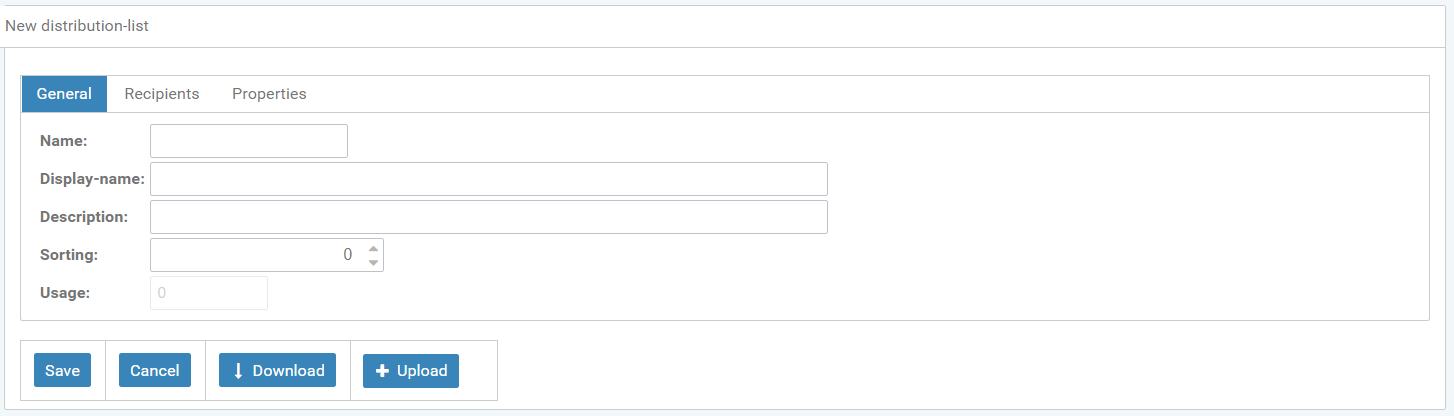
Figure: Define the general information of the distribution list
Use the "+" icon in this area to add and enter the recipients of the distribution list. The import function can also upload this recipient list.
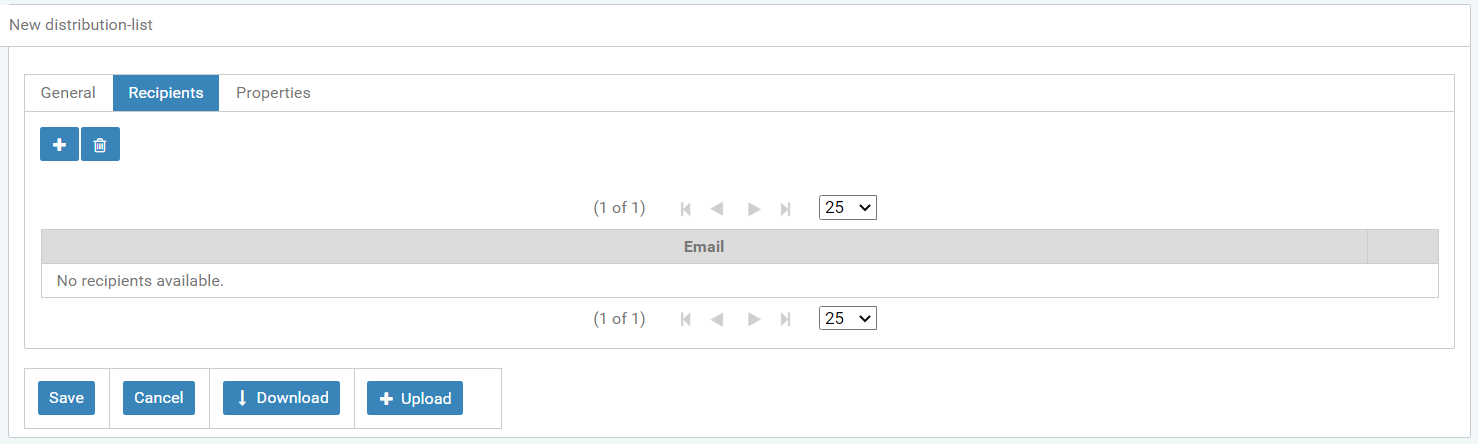
Figure: Set up recipients of the distribution list
The properties of the new distribution list can be assigned a value and the names and descriptions can be modified.
Use the Recycle bin icon to the right of the table to delete the Distribution list property.
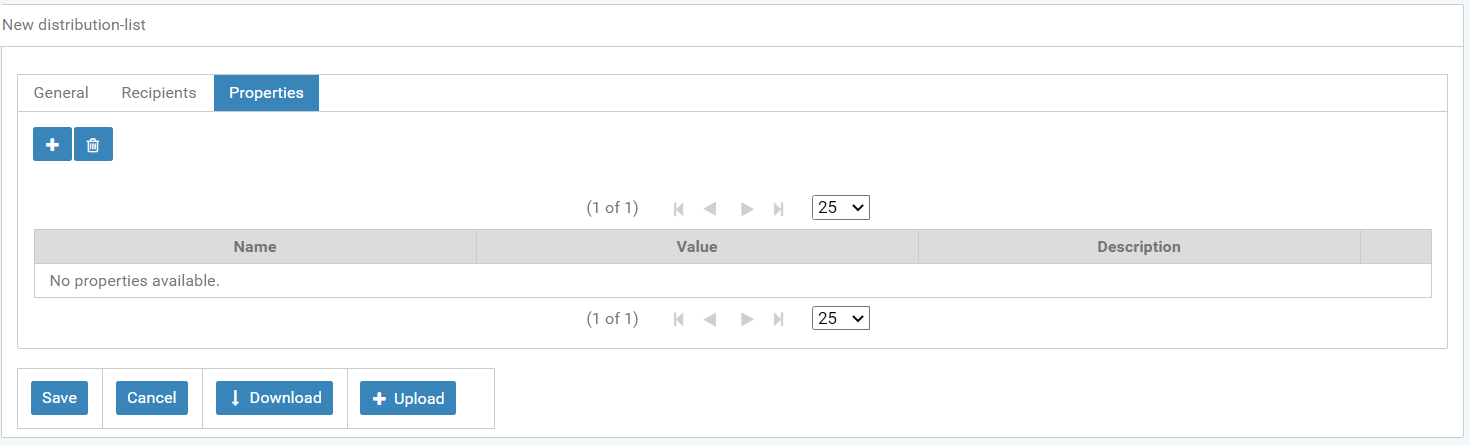
Figure: Configure properties of the distribution list
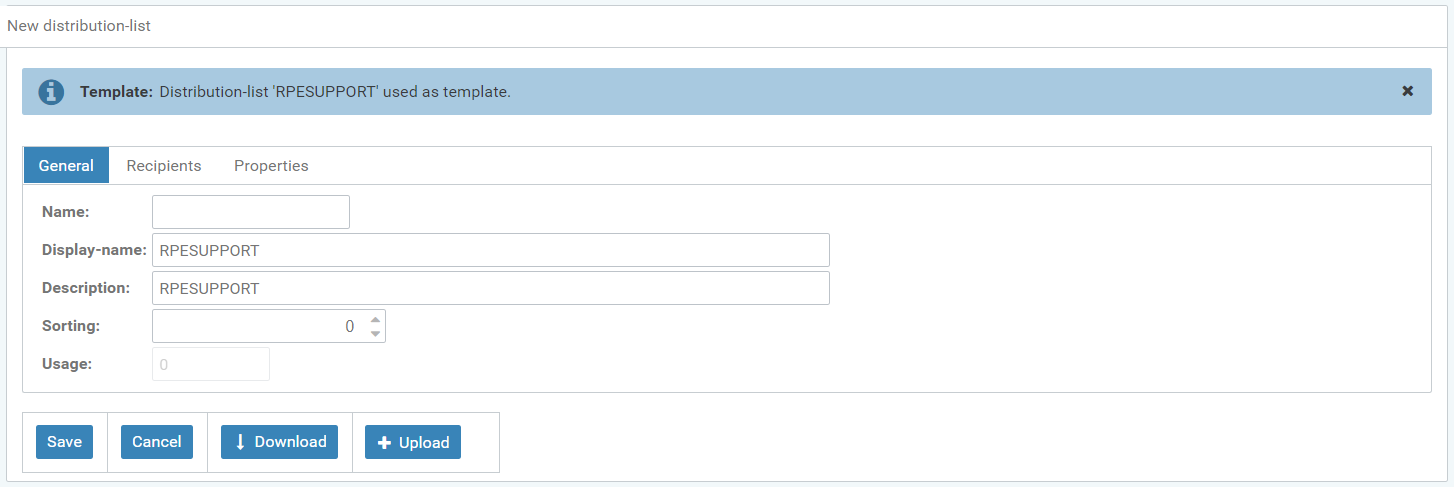
Figure: Distribution list template created successfully.
Use the Circle icon to display information about the selected distribution list, for example in ‘General’:
-
Name
-
Display name
-
Description
-
Sorting
-
Use
The Download button downloads all information in the distribution list as a .txt file.
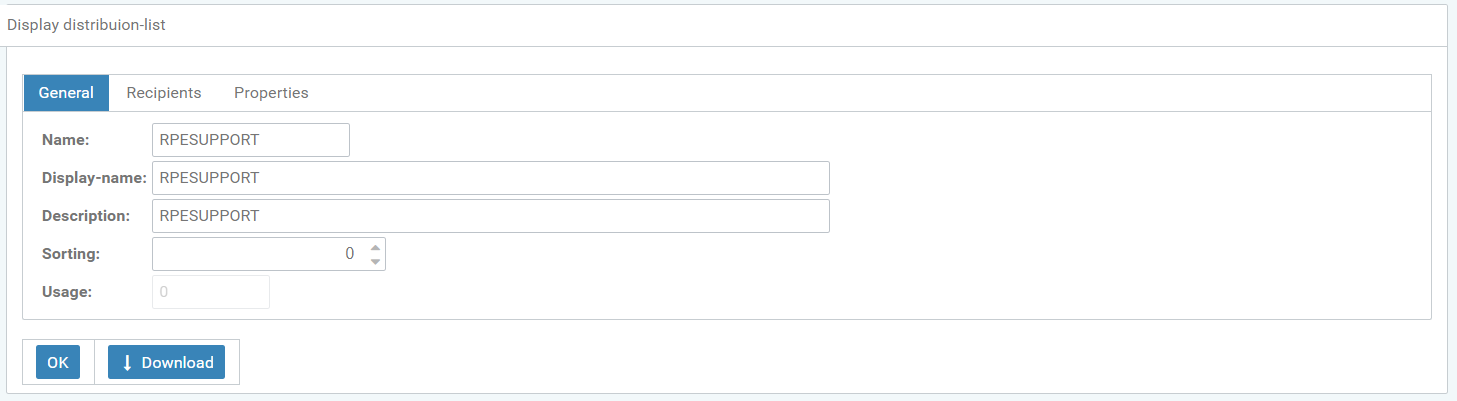
Figure: Display Tab General distribution list
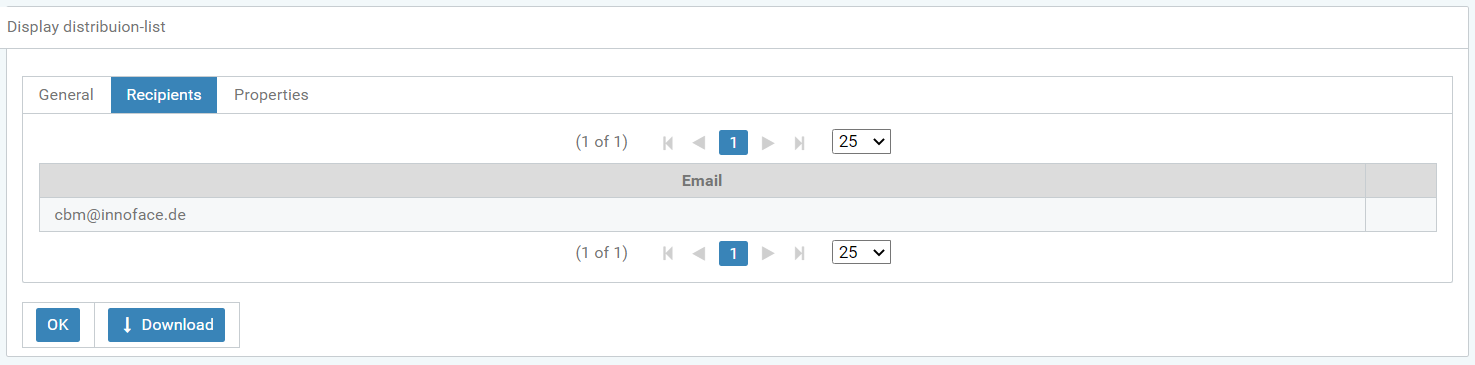
Figure: Display Tab Distribution list recipients
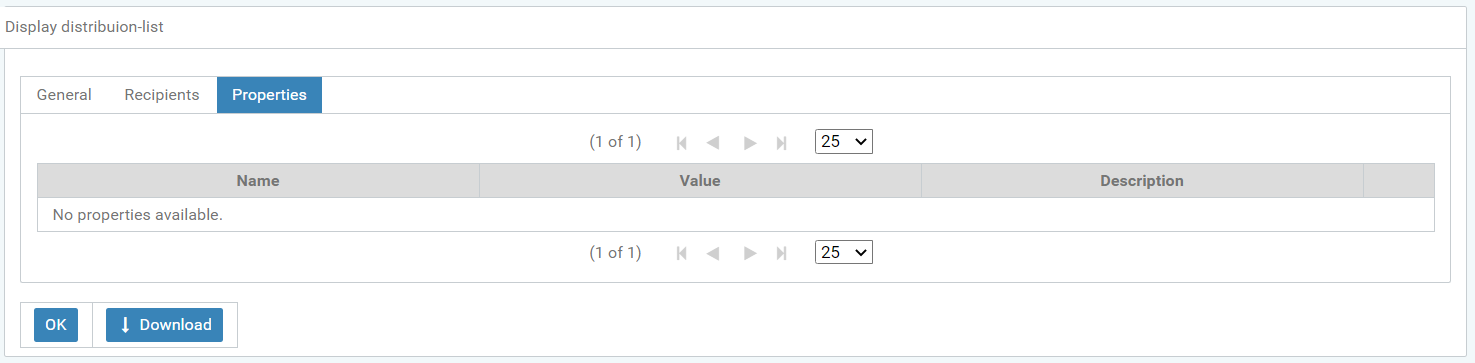
Figure: Display Tab Distribution list properties
The Edit icon can change an existing distribution list. Changes are easy in the Edit window. See the Figures below.
However, in this area it is also possible to download the changes as .txt files (Download), to make the edits in the .txt document and to upload them as modified .txt documents.
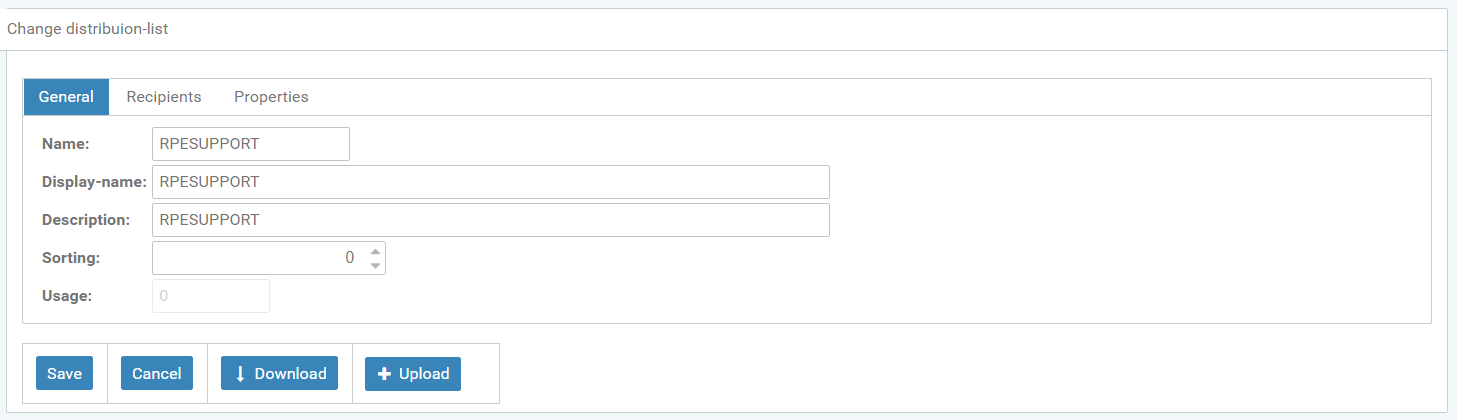
Figure: Amend distribution list General tab
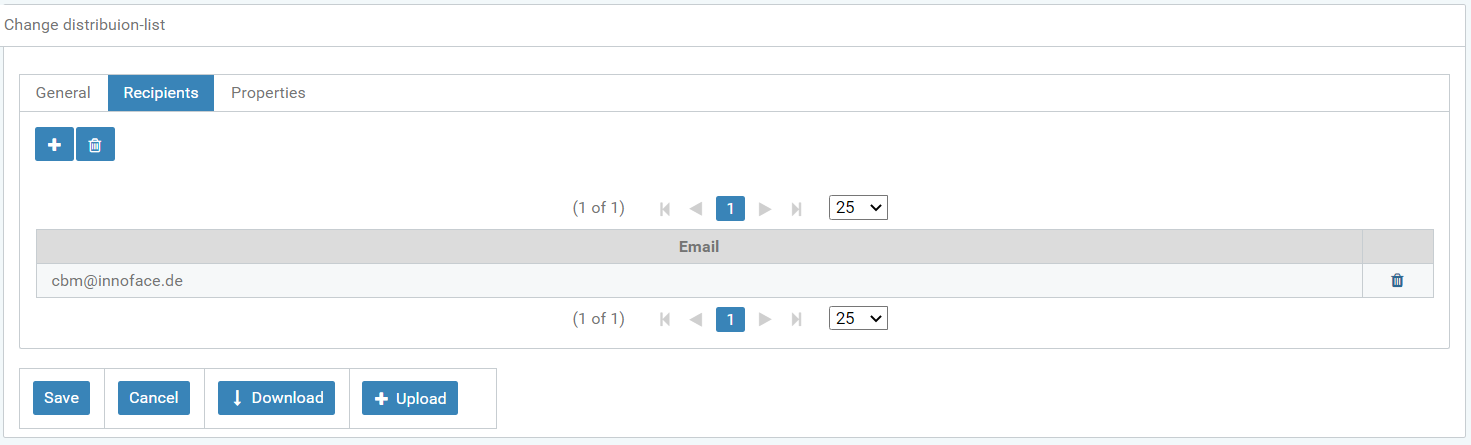
Figure: Amend distribution list Recipients tab
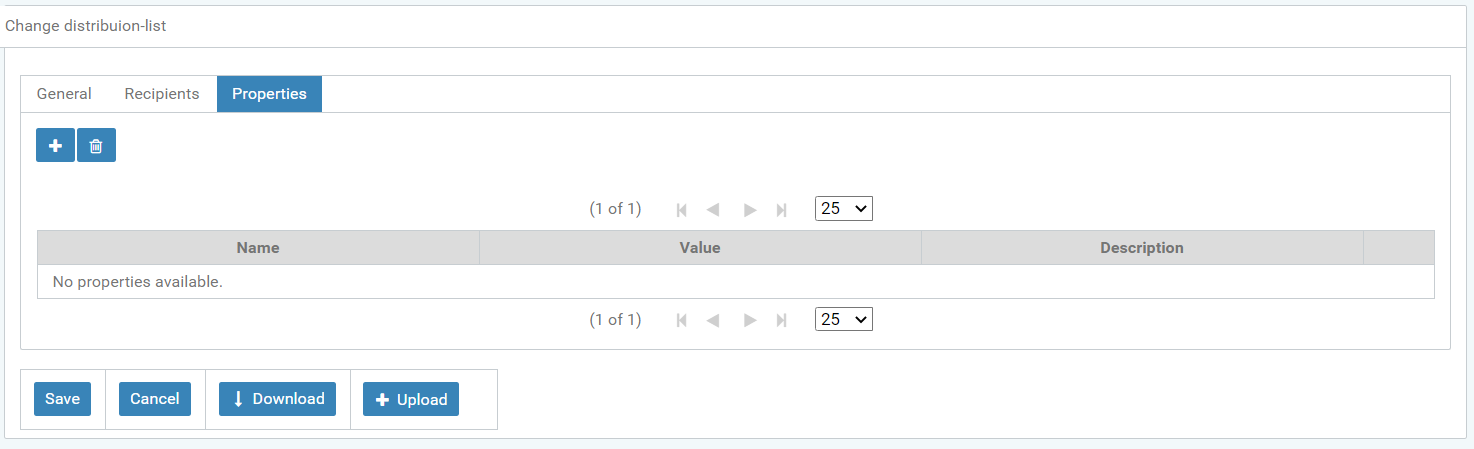
Figure: Amend distribution list Properties tab