
Vaults define physical file storage locations to store jobs and mail files. An appropriate vault daemon has to be set up and maintained to actually use a vault.

Figure: Vaults and Volumes configuration area
The icons “Back to previous page”, “Update overview” and “Create new vault configuration” are at the top of the screen.
Existing vaults display in a table.
The columns are divided into
-
Name
-
Vault description (optional)
-
Vault configuration display (Circle icon)
-
Changes to vault configuration (Edit icon)
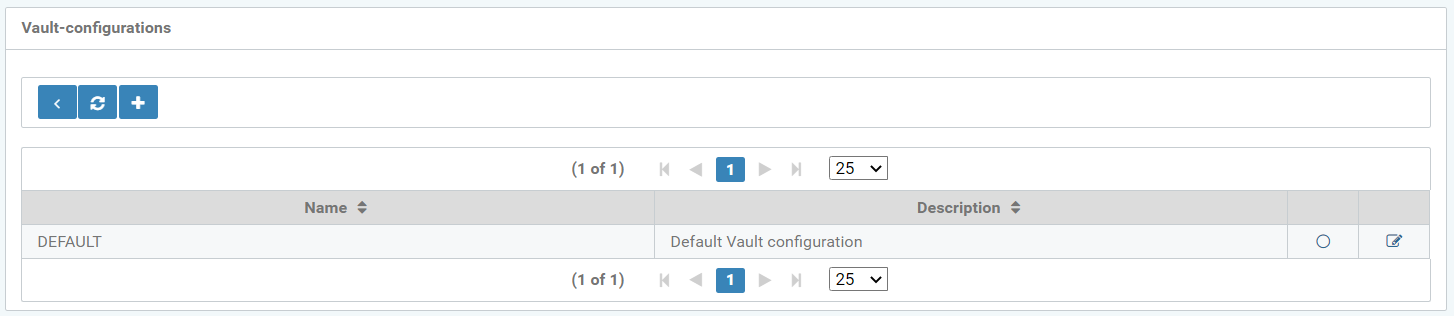
Figure: Overview of vault configurations
Create new vault
The "Configuration" tab is for configuring a new vault. The following parameters are editable:
-
Name
-
Path
-
Host name
-
Description
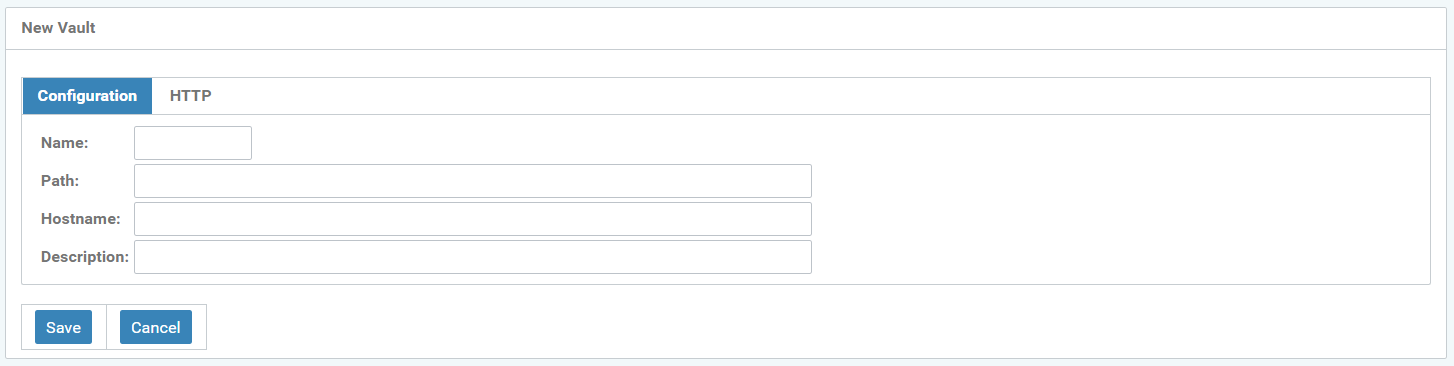
Figure: New vault - configuration
HTTP ports are processed in the HTTP tab and are divided into:
-
HTTP port
-
HTTPS port
Note, that only one of the two ports may have a value > 0. It will be the one used and it determines whether communication will be via HTTP or HTTPS.

Figure: Specify HTTP ports of the new vault
Change Vault
Ports and configuration of existing vaults can be modified.
You can no longer change the name of an existing vault.
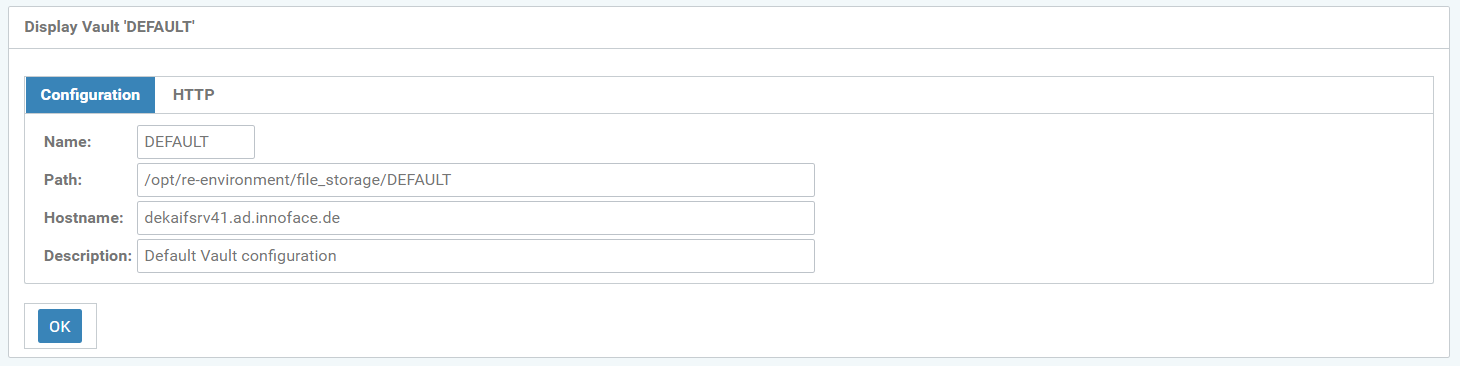
Figure: Change the vault configuration
Furthermore, the HTTP port for the already created vault can be changed - see the following figure.

Figure: Change the HTTP port of the vault
Delete Vault
Unused vaults can be deleted via the trash can icon.
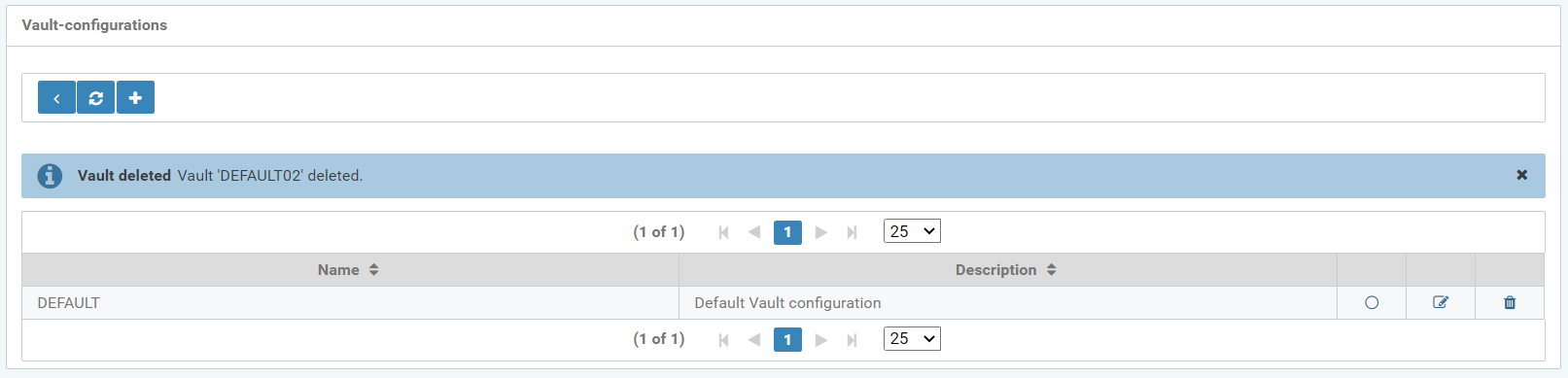
Figure: Vault configurations
Before the vault is finally deleted, a pop-up window appears as a confirmation prompt asking if the Vault should really be deleted.
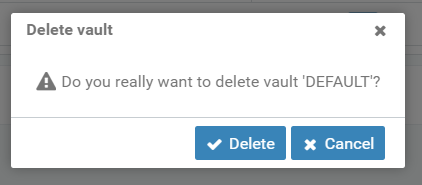
Figure: "Delete Vault" pop-up window